 peer
Peerfold now sends App Events to HubSpot. Course, community, commerce and partner actions land on the contact, so you can build lists or segments from them and start a workflow when one of them happens. You can also put a promo code in a link. Quizzes have two new settings: what a learner sees after they submit, and a pre-check mode that gives one try and no pass or fail. A course can now send visitors who are not enrolled to the program it belongs to. Sites pages can hold a HubSpot form. And the My courses cards now open the lesson where the learner stopped.
Below is what shipped this week and how to use it.
New
App Events you can use in lists, segments and workflows
HubSpotWhen your workspace is connected through the Peerfold HubSpot app, Peerfold writes App Events to the contact's timeline. In HubSpot you can start a workflow when one of these events happens, under Start when this happens. You can also use the events to build lists and segments.
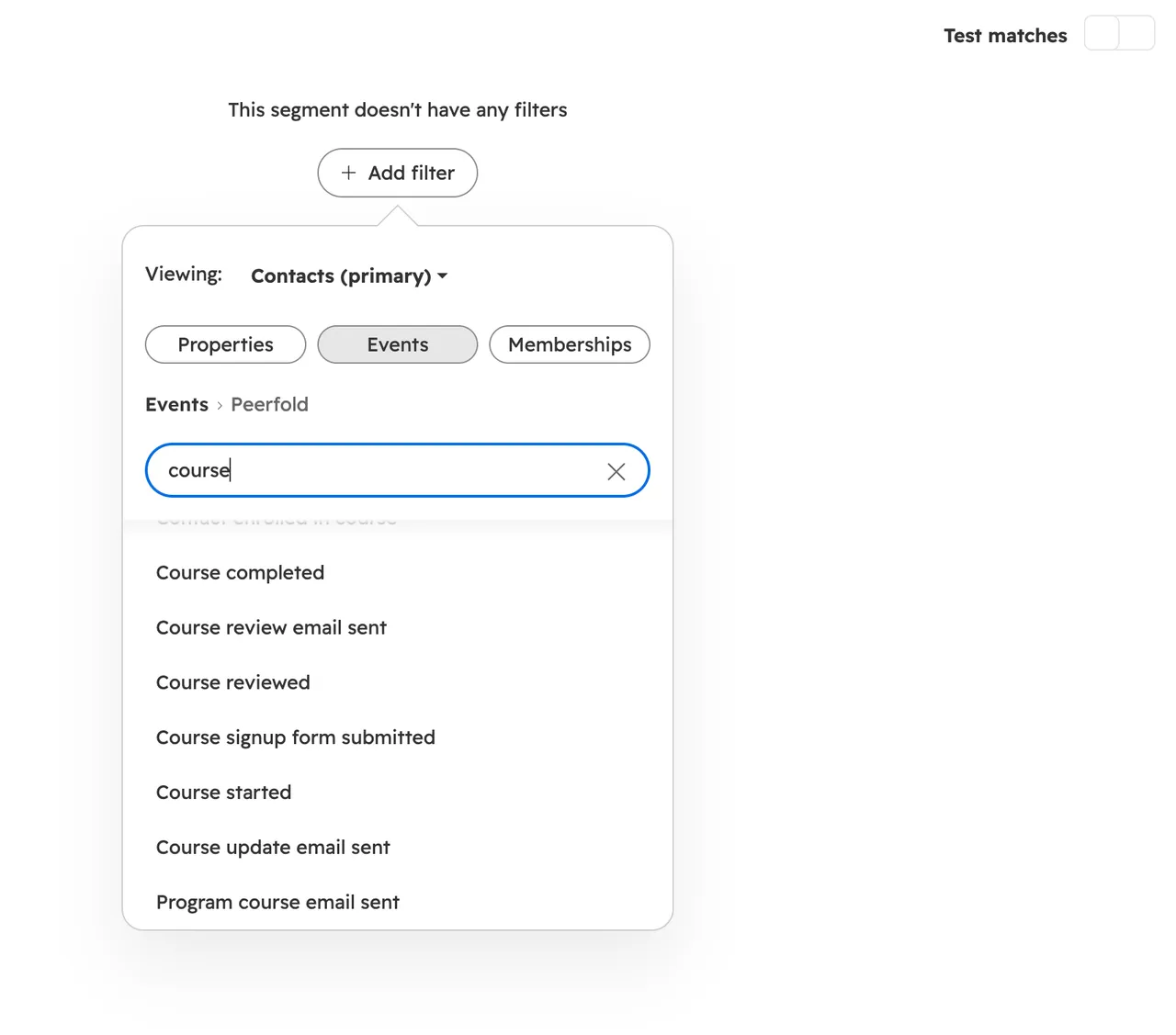
To receive the events:
Connect the Peerfold app to your HubSpot account. A workspace still connected through the older HubLMS app does not send these events.
If the Peerfold app is already connected, open Reconnect and approve the new timeline permissions when HubSpot asks. The app needs timeline read and timeline write access to put events on the contact.
The person must already have a linked HubSpot contact. An event does not create a contact.
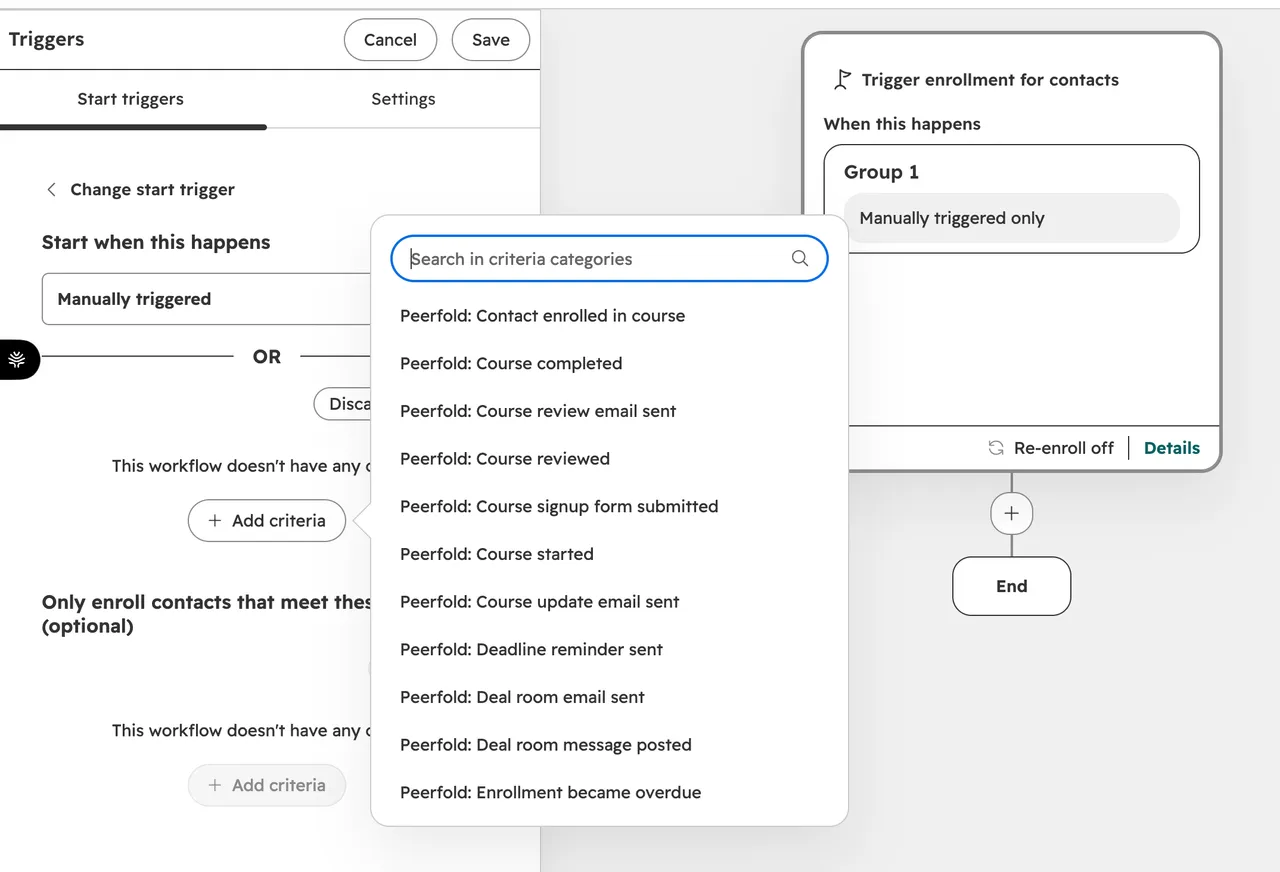
There are 100 event types: 60 activity events and 40 email-sent events. Most activity events and every email-sent event are on by default. When a learner completes a lesson, Peerfold sends Lesson completed. When that event goes out, Peerfold does not also write the old Lesson Completed note on the contact. Other LMS Activities notes are unchanged.
Five high-volume events stay off for now, because there is no workspace screen yet to turn them on: Lesson viewed, SCORM or xAPI result recorded, Comment posted, Reaction added, and Partner resource viewed. Peerfold does not send HubSpot form submitted through Peerfold, because that submission already lives in HubSpot.
Activity events (on by default)
Courses and learning:
Contact enrolled in course
Course started
Lesson completed
Lesson progress reset
Course completed
Course reviewed
Resource viewed
Exam submitted
Exam passed
Exam failed
Certificate issued
Certificate reached the expiry window
Program completed
Enrollment became overdue
CEU credits earned
Live session registered
Live session attended
Community:
Thread created
Thread deleted
Cohort member joined
Abuse reported
Idea created
Idea status changed
Cohort facilitator assigned
Cohort breakout assigned
Badge awarded
Commerce and membership:
Member created
Signed in
Order paid
Membership joined
Membership trial started
Membership tier changed
Membership canceled
Membership ended
Site buying intent changed
Forms:
Sites form submitted
Profile form submitted
Lead form submitted
Signup form submitted
Signup and lead form submitted
Course signup form submitted
Partners:
Partner lead registered
Partner lead status changed
Partner deal registered
Partner deal stage changed
Partner commission accrued
Partner commission paid
Partner payout run recorded
Partner MDF request submitted
Partner MDF request decided
Deal room message posted
Partner resource downloaded
Partner agreement signed
Collections:
Collection change proposed
Email-sent events (on by default)
Peerfold records these only when the mail provider sent the email.
Sign-in code sent
Form verification code sent
Purchase confirmation sent
Cart purchase confirmation sent
Program purchase confirmation sent
Membership welcome sent
Access link resent
Enrollment notice sent
Cart recovery sent
Workspace invitation sent
Workspace member added notice sent
Deadline reminder sent
Overdue training notice sent
Live session reminder sent
Recertification reminder sent
Recertification expired notice sent
Certificate email sent
Community activity email sent
Seat assigned notice sent
Seat links sent
Organization admin invitation sent
Getting-started welcome sent
Getting-started nudge sent
Getting-started last note sent
Partner lead registered email sent
Partner lead status email sent
Partner commission accrued email sent
Partner payout recorded email sent
Partner MDF request receipt sent
Partner MDF request status email sent
Deal room email sent
Partner agreement reminder sent
Partner invitation sent
Partner agreement to sign sent
Partner agreement completion sent
Course update email sent
Program course email sent
Course review email sent
Collection review reminder sent
Collection change update sent
Promo codes in your links
CommerceAdd ?promo=CODE to the address of a course or program page. ?coupon=CODE works too. Use the code text from a promotion code in your Stripe account.
The page shows the list price struck through, the new price, and the code's note. The Buy button names the new price.
At checkout, the code is already applied. The buyer does not type it.
The code stays with the visitor for 24 hours on that course or program, so it is still there after they sign in or come back from a canceled checkout. It does not carry to other courses.
It works on portal course and program pages, on course and program pages built in Sites, and on the program checkout in the API.
A code that is not valid, is for another currency, or is limited to other products or customers is ignored. The page shows the list price, and the buyer can still pay.
The course or program needs Take promotion codes ticked. That is the default.
Use it in emails, ads and partner links when you want the price drop to show before the click to buy.
Choose what learners see after a quiz
LearnThe quiz block has a new setting, After submit, show:
Score, marks and explanations. This is the default, and it is what quizzes did before.
Score and marks. Right or wrong for each question, with no explanations.
Score only.
The rule is enforced on the server, so the API and embedded players follow it too.
Pre-check quizzes
LearnTick Use as a pre-check on a quiz block to find out what learners know before the lesson. The learner gets one attempt and sees "You scored 40%." with no pass or fail and no Retry button. When they come back, they see their score and the questions, read-only.
A quiz that the lesson requires learners to pass cannot be a pre-check, so a learner is never locked out of a lesson.
To let a learner take a pre-check again, open the learner in Learners, go to Manage progress, and press Clear pre-check on the lesson. Their lesson progress stays as it is. The pre-check also works in the HubSpot modules and the WordPress plugin.
Send course visitors to the program
ProgramsA course in a program has a new setting, off by default: send learners to a program. Pick the program and one of two strengths:
Steer. A visitor who is not enrolled sees one button to the program in place of the course's own buttons.
Block. The same, and a visitor who is not enrolled and opens the course page or one of its lessons goes to the program page.
Enrolled learners are never affected. A course you also sell on its own keeps its Buy button, with a line under it that links to the program. Courses with open access or behind a membership are never steered or blocked. This week it works on the portal course pages. Sites pages, the WordPress plugin and the HubSpot theme come next.
Course cards open where the learner stopped
LearnersOn My courses, a card for a course the learner is enrolled in now opens a lesson, not the course page. It opens the lesson they last worked in, if that lesson is unfinished. Otherwise it opens the next incomplete lesson. A finished course, closed access, or a lesson held by a release date still opens the course page.
HubSpot forms on your pages
SitesSites has a new HubSpot form block. Place it on a page and choose a HubSpot form, or paste its Form ID. The Portal ID uses your connected HubSpot account when you leave it blank, and you can pick the region.
If you turn on Set as raw HTML form in the form's Style & preview in HubSpot, the form takes your site's fonts, colors, corners and button style. A page loads HubSpot's form script only when it has this block.
More AI assistants can connect
DevelopersThe Peerfold MCP server now accepts AI clients that sign in with a client secret. That is the kind of connection Microsoft 365 Copilot asks for. We also tightened how the server describes each tool to an assistant, so ChatGPT and others can tell which tools only read, which change data, and which send something outside your workspace.
Improved
Every number follows the date range
ReportsThe 7, 30 and 90 day control on Reports used to change only the two charts. Now every figure on the page uses the same range: new enrollments, active learners, completion rate, certificates issued and overdue enrollments.
Fixed
Imported completions write lesson rows
LearnersA completion brought in by an import now marks each lesson complete. Learners on a course that runs in order can open any lesson to review it, and an import no longer overwrites a completion the learner earned in Peerfold.
Day.ai writes work again
ConnectDay.ai writes for people and organizations work again.
Page Collections names the approver
SitesIn Page Collections, the record panel names the approver when a script or a schedule approved the record, and version times are in order.
Collection file uploads say what failed
SitesA collection file upload that does not reach storage now says what failed.
Video Shape in HubSpot and WordPress
LearnThe video Shape setting from last week now works in the HubSpot modules and the WordPress plugin.